Tag: google home

  • Are Smart Speakers Always Listening? The Real Answer

    Are Smart Speakers Always Listening? The Real Answer

    You hear it constantly: “Smart speakers are spying on you.” The real story is more nuanced. Here’s what’s actually happening when you set an Echo, Nest, or HomePod on your shelf — and the privacy controls you should set today.

    The 30-second answer

    Smart speakers ARE always listening — but only locally, for a single wake word (“Alexa,” “Hey Google,” “Hey Siri”). The microphone hardware is on; an on-device AI is checking each second of audio for a match.

    Audio is NOT sent to the cloud until the wake word is detected. After that, what you say next IS recorded and sent to Amazon/Google/Apple’s servers for processing.

    What’s stored, what’s not

    Stored on your speaker (locally): A small audio buffer that resets every few seconds. Used only to detect the wake word.

    Stored in the cloud (after wake word): An audio recording of your command + the transcribed text. Stored under your account.

    Reviewed by humans (sometimes): A small percentage of recordings used to be reviewed by contractors to improve speech recognition. Amazon and Google both let you opt out of this since 2019. Apple does not use human review by default for HomePod.

    How to actually verify this

    You can read your own voice history any time:

    • Alexa: Alexa app → More → Activity → Voice History. You’ll see every recording.
    • Google Home: myactivity.google.com — filter by “Voice & Audio.”
    • Apple HomePod: Doesn’t store individual recordings tied to your identity by default.

    You’ll see entries from when you spoke to your speaker — and (rarely) accidental wake-word activations. The latter is real: smart speakers occasionally hear “Alexa” in TV shows, “OK Google” in conversations, etc. About 5–15 false activations per device per month according to studies.

    What about “the speaker heard us talking about X and now I’m seeing X ads”?

    This is one of the most persistent smart home myths. Multiple academic studies (Northeastern, Princeton) have analyzed Echo and Nest devices over months and found NO evidence of ambient audio leaving the device.

    The actual cause of “they’re listening” ad coincidences is usually:

    • You searched for it on your phone earlier (and forgot)
    • You discussed it with someone who searched for it
    • Your purchase history / location data made it likely
    • Pure coincidence (we see thousands of ads daily; some will hit)

    The 5 privacy settings worth changing today

    1. Disable human review

    Alexa: Settings → Alexa Privacy → Manage Your Alexa Data → toggle off “Use of Voice Recordings.”
    Google: myactivity.google.com → Web & App Activity → uncheck “Include voice and audio activity.”

    2. Auto-delete voice history

    Alexa: Settings → Alexa Privacy → Manage Your Alexa Data → set auto-delete to 3 months.
    Google: myactivity.google.com → enable auto-delete on Voice & Audio Activity.

    3. Mute the microphone when you’re not using it

    Every Echo, Nest, and HomePod has a physical mute button. Hardware-level disconnection of the mic — no software can override it. Use it when you have private conversations.

    4. Disable purchasing by voice

    Otherwise anyone in earshot can buy stuff on your account. Alexa: Settings → Account Settings → Voice Purchasing → toggle off (or require a confirmation code).

    5. Review and remove third-party skills you don’t use

    Many Skills/Actions request data access. Alexa: Skills & Games → Your Skills → remove anything you don’t use.

    The actually-private alternative

    If even local wake-word detection bothers you, two real alternatives:

    • Apple HomePod mini. Most processing is on-device, recordings aren’t tied to your Apple ID by default, no human review.
    • Self-hosted voice assistants. Home Assistant Voice or Mycroft AI run entirely on your own hardware. Setup-intensive, but no audio leaves your house.

    FAQ

    Can my smart speaker be hacked?

    The wake-word detection itself is hard to remotely compromise. The bigger risks: weak Wi-Fi password, a compromised account password, or a malicious skill. Use 2FA on your Amazon/Google/Apple account.

    Does covering the microphone work?

    Sort of. Covering it physically muffles sound but doesn’t fully disable the mic. The hardware mute button is more reliable.

    If I unplug the speaker, am I safe?

    Yes — no power, no mic.

    Are smart TVs “always listening” too?

    If they have a wake-word feature (Samsung Bixby, LG ThinQ), yes — same model. Also, many smart TVs do “Automatic Content Recognition” (ACR) — they identify what you’re watching and report it. This is its own privacy issue. Disable ACR in TV settings.

    Should I just not have a smart speaker?

    Reasonable choice. Most of what they do (timers, music, home control) can be done from your phone. The convenience tradeoff is yours.

    Bottom line

    Smart speakers don’t secretly stream conversations to advertisers. But they DO record what you say after the wake word, and that data is valuable to the manufacturer. Use the privacy settings, mute when needed, and decide if the convenience is worth the small data trade-off. For most people, it is.

    If you’re shopping for one, see our take on the Echo Pop ($25) or the Nest Mini ($49) in our Matter vs HomeKit vs Google Home guide.

    — Written by The Grid editorial team.

  • What Is Matter? The Smart Home Standard Explained (2026 Update)

    What Is Matter? The Smart Home Standard Explained (2026 Update)

    If you’ve shopped for smart home gear in the last two years, you’ve seen the “Works with Matter” badge plastered on bulbs, plugs, thermostats, locks, and hubs. Here’s the plain-English version of what Matter actually is, what it changes, and whether you should care.

    The one-sentence version

    Matter is a free, open communication standard that lets smart home devices from different brands work with Apple Home, Google Home, and Amazon Alexa simultaneously, without needing brand-specific apps or hubs.

    Before Matter (launched late 2022, mature in 2026), buying a Philips Hue bulb meant committing to the Hue ecosystem. Now, a Matter-certified bulb works with whatever platform you already use — and keeps working if you switch.

    How Matter works (simplified)

    • Matter is a language, not a network. Devices speak Matter on top of Wi-Fi, Ethernet, or a low-power wireless tech called Thread.
    • Thread is Matter’s preferred wireless network for low-power devices like sensors and locks. It’s mesh-based — every plugged-in Thread device strengthens the network.
    • A Matter controller (a HomePod mini, Nest Hub, Echo, or Apple TV) is the “hub” that talks to your devices and exposes them to your smart home app.
    • Multi-admin means a Matter device can be controlled by Apple Home AND Google Home AND Alexa at the same time. Set up once; works everywhere.

    What you need to use Matter today

    To get started, you need three things:

    1. A Matter controller. Easiest options: Amazon Echo Pop (~$25), Google Nest Mini (~$49), or any 2nd-gen Apple HomePod mini (~$99). Most modern Echo, Nest, and HomePod devices already are Matter controllers via firmware update.
    2. A Matter-certified device. Look for the diamond Matter logo on the box. Examples: TP-Link Tapo L530E smart bulb, Matter smart plugs, Matter-certified thermostats.
    3. A phone with the smart home app of your choice (Apple Home on iPhone, Google Home on Android, Alexa on either).

    Setting up a Matter device (90 seconds)

    1. Plug in the device. Open your smart home app (Apple Home, Google Home, or Alexa).
    2. Tap “Add Accessory.”
    3. Scan the Matter QR code on the device or its packaging using your phone’s camera.
    4. Pick a room, give it a name, and you’re done.

    Compare this to the old way: download brand app, create brand account, connect to brand cloud, link brand to your smart home platform, repeat for every brand. Matter cuts all of that.

    Matter over Wi-Fi vs Matter over Thread

    Two flavors of Matter, and they matter for different reasons:

    • Matter over Wi-Fi — devices use your existing 2.4 GHz Wi-Fi. No extra hardware needed, but each device counts against your router’s connection limit (most home routers handle 30–50 fine).
    • Matter over Thread — devices use Thread, a separate low-power mesh network. Better for battery-powered gadgets (sensors, locks). Requires a Thread border router, which most modern Echo, HomePod mini, and Nest Hub devices already are.

    What Matter is NOT (yet)

    Important reality checks:

    • Cameras and video doorbells aren’t fully on Matter yet. Cameras stayed in their own ecosystems (Ring, Nest, Eufy) because video pipelines are complex. Some basic camera support arrived in 2025 but it’s still rough.
    • Older devices don’t magically become Matter. Some manufacturers (Aqara, Eve, Philips Hue) shipped firmware updates to add Matter to existing devices. Others didn’t.
    • Matter doesn’t fix everything. Setup is easier; advanced features (color scenes, automations, energy reporting) sometimes still require the brand’s own app.

    Should you only buy Matter devices going forward?

    For most categories, yes. Lights, plugs, thermostats, locks, sensors, switches — all easy wins. Matter compatibility is now a tiebreaker between two otherwise-equal products.

    Exceptions: cameras (still buy ecosystem-specific) and devices where the brand app gives you features you actually use (e.g., Hue’s TV sync, which Matter can’t access).

    FAQ

    Do I need a new router for Matter?

    No. Matter uses your existing Wi-Fi (2.4 GHz) or Thread. Modern routers from the last 5 years are fine.

    Do Matter devices need internet to work?

    Many work locally for basic on/off — your lights still respond to voice or schedules during a Wi-Fi outage. But the app and remote access need internet.

    Can I use Matter without a smart speaker?

    You need at least one Matter controller. Apple Home requires a HomePod, Apple TV, or iPad. Google requires a Nest device. Alexa requires an Echo. The cheapest route in 2026: $25 Echo Pop.

    Is Matter secure?

    Matter uses end-to-end encryption between device and controller. Setup uses certificate-based authentication so a stranger can’t add your device to their network. It’s more secure than most pre-Matter setups.

    Will Matter replace HomeKit, Google Home, and Alexa?

    No. Matter is the language; the platforms are the apps you use. Apple, Google, and Amazon still want you in their app for daily control. Matter just makes the devices speak across them.

    Bottom line

    Matter is the most important smart home shift in a decade. In 2026 it’s mature enough to trust — buy Matter when you can, ignore when you can’t. The lock-in problem that defined the smart home for 10 years is finally easing.

    Want to dive deeper into platforms? Read our Matter vs HomeKit vs Google Home guide next.

    — Written by The Grid editorial team.

  • How to Set Up Your First Smart Plug (Step by Step)

    How to Set Up Your First Smart Plug (Step by Step)

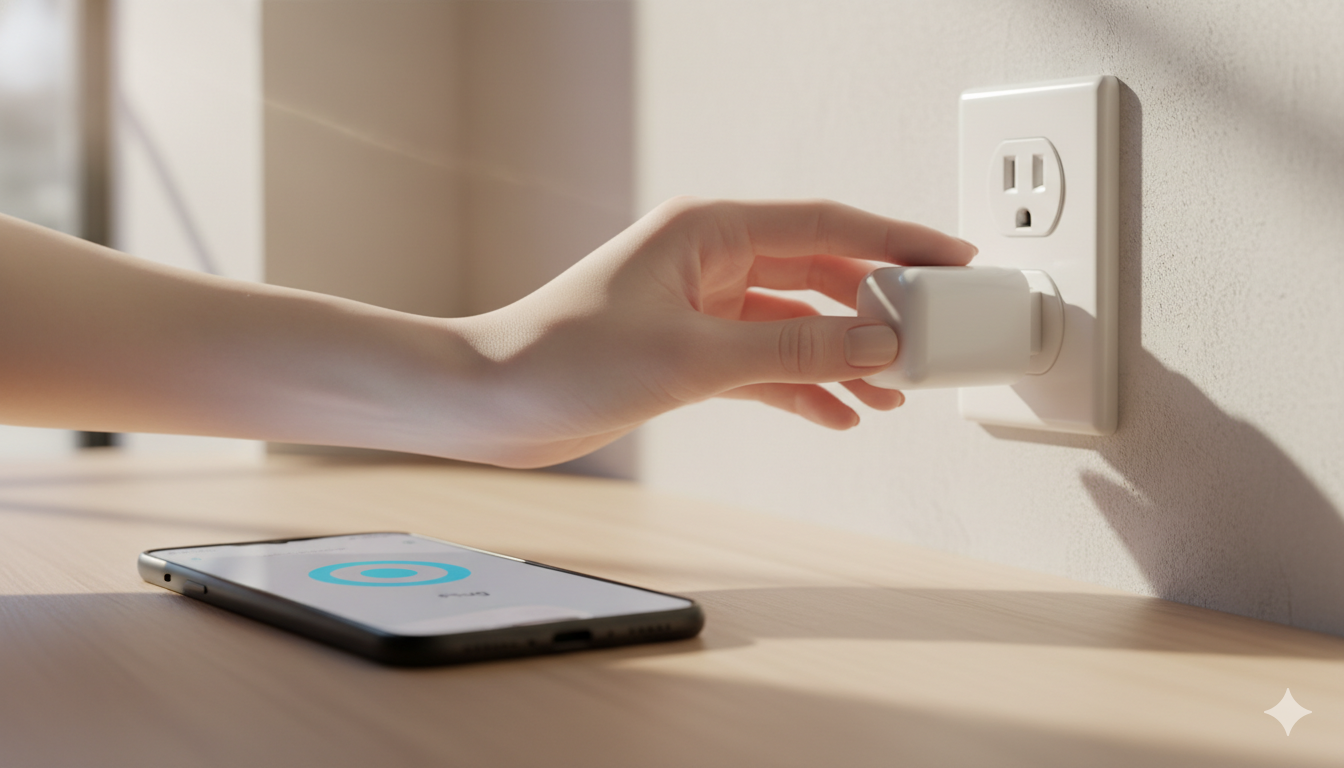
    Smart plugs are the cheapest, easiest way to start a smart home. Plug a smart plug into the wall, plug a regular device (lamp, coffee maker, fan, Christmas tree) into the smart plug, and that device is now app-controllable.

    This guide walks you through setting up your first one — from box to working voice command — in about 10 minutes. The exact taps differ slightly by brand, but the flow is the same for almost every smart plug on the market.

    What you need before you start

    Three things, no exceptions:

    1. Your smart plug, fresh out of the box. (No plug yet? Try the Kasa HS103 4-pack on Amazon.)
    2. 2.4 GHz Wi-Fi. Most smart plugs only connect to the 2.4 GHz band, NOT 5 GHz. If your router has separate network names, use the 2.4 GHz one during setup.
    3. The brand’s app, installed on your phone. Common ones: Kasa (TP-Link), Smart Life / Tuya (generic), Wyze, Govee, eufyHome.

    Step 1: Plug it in (somewhere convenient)

    Plug the smart plug into a wall outlet near where you’ll set it up. The light on the plug will start blinking — usually blue, sometimes red, sometimes both. Blinking means “ready to pair.” If it’s solid or off, hold the power button for 5–10 seconds to reset it.

    Step 2: Open the brand’s app and add a device

    Each app calls the button slightly different things. Look for:

    • TP-Link Kasa: tap “+” then “Add Device”
    • Smart Life / Tuya: tap “+” then “Add Device” → choose “Socket” → “Wi-Fi”
    • Wyze: tap “+” then “Add Device” → “Plug”
    • Govee Home: tap “+” → choose your plug model from the list

    You may be asked to create an account with the brand. Use a real email — you’ll need it to recover access if you change phones.

    Step 3: Connect to Wi-Fi

    The app will ask for your Wi-Fi network and password. Use the 2.4 GHz network if yours has a separate one. Type the password carefully — case sensitive, no extra spaces. Stay near the plug while it connects. Setup can take 30–90 seconds.

    Step 4: Name it something specific

    When the app asks for a name, don’t accept “Smart Plug 1.” Use the room and what’s plugged in: “Living Room Lamp”, “Bedroom Fan”, “Kitchen Coffee Maker.” This is what you’ll say to your voice assistant later.

    Step 5: Test it from the app

    In the brand’s app, tap the plug’s icon to toggle it on and off. The plug should click audibly and the connected device (lamp, fan) should respond.

    Step 6: Connect to Alexa, Google Home, or Apple Home

    Alexa

    Open the Alexa app → More → Skills & Games → search for the brand → Enable Skill → log in with your brand account → choose devices to import. Don’t have an Echo? Try the cheap Echo Pop ($25 on sale).

    Google Home

    Open Google Home → “+” (top left) → Set up device → Works with Google. Cheapest Google speaker: Nest Mini 2nd Gen.

    Apple Home (HomeKit)

    This depends on the plug. If the box says “Works with Apple Home” or “HomeKit,” scan the QR code on the plug with the Apple Home app.

    Step 7: Try a voice command

    Once connected to your voice assistant, try: “Alexa, turn on the bedroom fan,” “Hey Google, turn off the living room lamp,” “Hey Siri, turn on the coffee maker.”

    Step 8: Set up your first automation

    In Alexa: More → Routines → “+”. Trigger: “When you say ‘good night.’” Action: “Turn off Living Room Lamp.”

    In Google Home: Routines → “+”. Trigger: “Sunset.” Action: “Turn on Porch Lamp.”

    In Apple Home: Automation tab → “+”. Trigger: “A Time of Day.” Action: “Turn off Bedroom Fan at 11 p.m.”

    Common problems and fixes

    Problem Most likely cause Fix
    Plug won’t pair Connecting to 5 GHz instead of 2.4 GHz Switch your phone to the 2.4 GHz network temporarily
    Plug shows “offline” Weak Wi-Fi at outlet location Move plug closer to router or upgrade router
    Voice assistant can’t find it Brand-skill not linked Re-link the brand’s skill in Alexa/Google
    Plug clicks but device doesn’t respond Connected device is itself off Make sure the lamp’s own switch is on
    Schedule doesn’t fire Time zone mismatch Check time zone in the brand’s app settings

    FAQ

    Can I plug a heater or air conditioner into a smart plug?

    Check the watt rating. Most smart plugs are rated 10A / 1,200W. Space heaters can pull 1,500W+ and will trip or melt a smart plug.

    Do smart plugs use a lot of standby power?

    A modern smart plug draws roughly 0.5–1.5W when idle. Across a year, less than $2 of electricity. Negligible.

    Can a smart plug make any “dumb” device smart?

    Only if the device turns on automatically when it gets power.

    Do I need a hub for a smart plug?

    Not for Wi-Fi smart plugs (most popular ones). You’ll need a hub for Zigbee or Thread plugs.

    Are smart plugs safe to leave in 24/7?

    Yes, as long as the connected device’s load is within the plug’s rated watts. Smart plugs from reputable brands are UL- or ETL-certified.

    Get the Kasa Smart Plug 4-pack on Amazon →

    — Written by The Grid editorial team.

  • Matter vs HomeKit vs Google Home: Which Should You Pick in 2026?

    Matter vs HomeKit vs Google Home: Which Should You Pick in 2026?

    Picking a smart home platform is the most consequential decision you’ll make in your first year. The wrong choice means devices that won’t talk to each other, repeated app-switching, and gear you eventually replace.

    The good news: in 2026, the choice is easier than it used to be, mainly because of Matter — a universal standard that mostly ends the platform wars. Here’s what each option actually means and how to decide.

    The four players (in plain English)

    • Apple HomeKit (now called “Apple Home”) — Apple’s smart home platform. Works only if your household uses iPhones. Entry hardware: HomePod mini.
    • Google Home — Google’s platform. Works best with Android phones and Google’s Nest devices. Entry hardware: Nest Mini 2nd Gen.
    • Amazon Alexa — Amazon’s platform. Works with both phones, has the widest device support, ties into Amazon shopping. Entry hardware: Echo Pop.
    • Matter — Not a platform. A common language all three platforms have agreed to speak. A “Matter” device works with HomeKit, Google Home, and Alexa simultaneously.

    Quick comparison

    Feature Apple Home Google Home Amazon Alexa
    Best for iPhone households Android households Mixed-device households
    Voice assistant Siri Google Assistant Alexa
    Strongest at Privacy, polish Search/info questions Device support, shopping
    Weakest at Limited devices Mediocre device automations Privacy
    Cheapest entry speaker HomePod mini ($99) Nest Mini ($49) Echo Pop ($25 on sale)

    How to decide based on your phone

    This is the single biggest factor for a beginner.

    You use an iPhone (and your household is mostly iPhones)

    Pick Apple Home (HomeKit). Setup is faster (you can scan a code with your camera and devices add themselves), automations stay private (Apple processes most of them on-device), and integration with iMessage, Find My, and Apple TV is genuinely useful.

    Check HomePod mini prices on Amazon →

    You use Android, mixed phones, or you don’t care about Apple

    Pick Google Home if you already use Gmail, Google Photos, etc. Pick Alexa if you want the cheapest hardware and the widest device selection. Either is a solid choice.

    Get the Nest Mini on Amazon →

    Get the Echo Pop on Amazon →

    You’re not sure or you might switch phones

    Pick Alexa as a safe default, or skip the platform decision entirely and build a Matter-only setup. The cheapest Matter starter pack is an Echo Pop plus a couple of Tapo L530E Matter bulbs.

    Why Matter changes the game

    Before Matter, choosing HomeKit meant your $200 Hue lights couldn’t talk to your Google Nest thermostat without weird workarounds. That’s gone.

    In 2026, the pattern that works best is:

    1. Pick whichever platform fits your phone (above).
    2. When you buy a new device, look for the “Works with Matter” badge.
    3. The device will then work with your chosen platform AND any other one you might switch to later.

    You’re no longer locked in. This is huge.

    Three real scenarios

    You want one smart speaker for the kitchen and three smart bulbs. HomeKit (iPhone family), Google Home (Android), or Alexa (mixed). Buy a single matching speaker plus Matter-compatible bulbs. Total: $80–$120.

    You’re building a security setup. Alexa or Google Home — both have stronger third-party security device support.

    You want everything to work and everything to be private. HomeKit. The privacy story is genuinely better.

    What about combining platforms?

    Possible but rarely worth it. Devices that support multiple platforms work fine, but you end up managing the same device from two apps. Pick one as your primary; if a specific device only supports another, only then add a second app.

    FAQ

    Will my old Alexa devices stop working if I switch?

    No. They’ll keep working in the Alexa ecosystem. They just won’t move over to HomeKit/Google.

    Is Matter actually working as advertised?

    As of 2026, mostly yes for lights, plugs, thermostats, and locks. It’s still rocky for cameras and doorbells.

    Do I need a paid subscription for any of these?

    Apple HomeKit Secure Video requires iCloud+ ($1/month and up). Google and Alexa offer optional subscriptions but the platforms themselves are free.

    Which has the best voice assistant?

    Subjective, but: Google Assistant is best at general questions and search. Alexa is best at smart home commands. Siri has improved a lot but still trails in casual conversation.

    Can I use a Nest Thermostat with HomeKit?

    Not natively — Google doesn’t allow it. There are workarounds (Homebridge, third-party bridges) but they’re for hobbyists.

    Bottom line

    Pick by phone. iPhone → HomeKit. Android → Google Home. Mixed/cheap → Alexa. Then only buy Matter-compatible devices going forward and you’ll never have to make this decision again.

    — Written by The Grid editorial team.

  • What Is a Smart Home? A Plain-English 2026 Guide

    What Is a Smart Home? A Plain-English 2026 Guide

    A smart home is not a single product. It’s a collection of everyday things — lights, thermostats, locks, cameras, plugs — that connect to your Wi-Fi and let you control them from your phone, your voice, or a schedule you set once and forget about.

    If that sounds either too simple or too overwhelming, this guide is for you. By the end, you’ll know what counts as smart home tech, what it costs to start, what it actually does for you day to day, and how to set up your first device without wrecking your weekend.

    What “smart home” actually means

    The term is loose. Practically, a device qualifies as “smart” if it does at least one of these:

    • Connects to your home Wi-Fi (or a hub)
    • Can be controlled from a phone app
    • Responds to a voice assistant (Alexa, Google Assistant, Siri)
    • Can be automated based on time, location, or another device’s state

    A regular light bulb is not smart. A bulb you can turn off from your bed, dim from your phone, or schedule to fade on at sunset — that’s smart.

    The five categories you’ll see everywhere

    Most smart home gear falls into one of these buckets. Pick whichever solves a problem you already have.

    Category What it does Typical starter price
    Lighting Bulbs, switches, LED strips you control remotely $10 – $50 per bulb
    Climate Thermostats, smart fans, vents that adjust automatically $80 – $250
    Security Cameras, doorbells, smart locks, motion sensors $30 – $200 per device
    Energy Smart plugs and energy monitors that track and cut usage $10 – $40 per plug
    Voice & control Speakers, displays, hubs, remotes $30 – $150

    The trick is to start with one category and one room. Trying to “go smart everywhere” on day one is how people end up with a junk drawer full of returned devices.

    What runs the show: hubs, voice assistants, and Matter

    This is where new buyers get the most confused, so here’s the short version:

    • A voice assistant (Alexa, Google Assistant, or Siri/HomeKit) lets you control devices by talking. It lives in a speaker (Echo Pop, Nest Mini, HomePod mini) or your phone.
    • A hub is a small box that translates between your devices and your network. Some smart devices need one; many newer ones don’t.
    • Matter is a new universal standard (launched 2023, mature in 2026) that lets devices from different brands work together without you having to pick a single ecosystem.

    If you’re starting today, the simplest path is: pick one voice assistant based on the phone you have (iPhone → Siri/HomeKit, Android → Google Assistant, neither → Alexa is the safest), and only buy devices that work with it. If a device says “Works with Matter,” you have flexibility to switch later.

    What a basic smart home actually does for you

    Forget the futuristic ads. Here’s what most people actually use their smart home for, day to day:

    • Schedules and routines. Lights fade on in the kitchen at 6:30 a.m., porch light goes on at sunset, kid’s room dims at 8 p.m. Set once, never think about it again.
    • Voice control while your hands are full. “Alexa, turn off the kitchen” while carrying a dripping pan beats walking back to a switch.
    • Catching things from your phone. Was the garage door left open? Is the thermostat running while we’re on vacation?
    • Saving electricity. Smart plugs reveal which “off” devices are still drawing power. Smart thermostats learn your schedule and stop heating an empty house.
    • Making the front door safer. Smart doorbells let you see who’s there before opening.

    How much does it cost to start?

    You can have a useful smart home for under $100. Honest minimum starting kit:

    • One smart speaker (~$25 on sale) — try the Echo Pop
    • Two smart bulbs for the rooms you use most (~$20 each) — try Wyze Bulb Color
    • One smart plug for a lamp or coffee maker (~$10) — try Kasa Smart Plug

    That’s about $75. Add a video doorbell ($60) and a smart thermostat ($120) over the next few months and you’ve covered the four highest-impact areas.

    What can go wrong (and how to avoid it)

    • Wi-Fi flakiness. Most smart devices use 2.4 GHz Wi-Fi. If your router is old or weak, devices will randomly drop offline. A modern mesh router fixes this almost completely.
    • App fatigue. Each brand wants you to use its app. Centralize control through one voice assistant or use Matter-compatible devices to keep everything in one place.
    • Devices that get abandoned. Cheap no-name brands sometimes shut down their cloud servers and your devices become bricks. Stick to brands with a track record.

    FAQ

    Do smart home devices need a subscription?

    Most don’t. Smart bulbs, plugs, thermostats, and basic cameras work fully without one.

    Can I control smart devices when I’m away from home?

    Yes — as long as your home Wi-Fi is on, almost every modern device works remotely through its app.

    Are smart home devices safe from hackers?

    Reasonably so if you (a) buy from reputable brands, (b) use a strong, unique password on your Wi-Fi, and (c) keep device firmware updated.

    Do smart bulbs work with regular light switches?

    Mostly no. If the wall switch is off, a smart bulb has no power. The fix: leave the wall switch always on, and control the bulb only from your app/voice.

    What if I rent and can’t drill anything?

    Plenty of renter-friendly options — smart bulbs (just screw in), smart plugs (no wiring), battery cameras with adhesive mounts.

    Where to go next

    If you’ve never bought a smart device, start with a single smart bulb in the room where you flip a light switch most often. It’s cheap, it can’t break anything, and it takes 5 minutes to set up.

    — Written by The Grid editorial team.