Category: Buying Guides

Our biggest, most-researched comparisons. Best smart bulbs under $20. Best security cameras without subscriptions. Best smart home setups for renters, apartments, seniors, and budgets under $200. Updated regularly so the picks reflect what’s available now — not three years ago.

  • Smart Home Glossary: 50+ Terms Explained Simply

    Smart Home Glossary: 50+ Terms Explained Simply

    The smart home industry loves jargon. Here are the 50+ terms you’ll actually run into, defined plainly. Bookmark this and refer back when a product page leaves you guessing.

    Organized into ecosystems, networking, devices, and concepts. Use Ctrl+F (Cmd+F on Mac) to find a specific term.

    Ecosystems and platforms

    Apple Home / HomeKit — Apple’s smart home platform. The app is “Home” on iPhone/iPad. HomeKit was the original name; Apple Home is the newer term. Same thing.

    Google Home — Google’s smart home platform. Works best with Android, Pixel, and Nest hardware. The app is also called “Google Home.”

    Amazon Alexa — Amazon’s voice assistant + smart home platform. Lives in Echo speakers, Fire TVs, and many third-party devices.

    SmartThings — Samsung’s smart home platform. Works on Galaxy phones and many compatible TVs.

    Home Assistant — A free, open-source, self-hosted smart home platform. Powerful but requires you to set up your own server. For enthusiasts.

    Read our Matter vs HomeKit vs Google Home guide to pick one.

    Connectivity standards

    Wi-Fi — Your home internet network. Most cheap smart home devices use 2.4 GHz Wi-Fi (longer range, lower bandwidth) and not the faster 5 GHz Wi-Fi.

    Bluetooth — Short-range (typically 30 ft) wireless used for setup or for nearby devices like smart locks. Higher security but limited range.

    Zigbee — A low-power mesh wireless standard used by Hue lights, many Aqara sensors, and SmartThings devices. Requires a hub.

    Z-Wave — Another low-power mesh standard, popular for security devices and smart locks. Requires a hub. Different frequency from Zigbee, so they don’t interfere.

    Thread — A newer low-power mesh wireless standard built for Matter. Requires a Thread border router (like a HomePod mini, Nest Hub, or Echo).

    Matter — A universal device language that runs over Wi-Fi or Thread. Lets devices from any brand work with HomeKit, Google Home, and Alexa. See our What Is Matter guide.

    BLE (Bluetooth Low Energy) — A version of Bluetooth optimized for tiny battery-powered devices like sensors. Used for Hue’s bridgeless setup and Apple’s Find My network.

    Hardware terms

    Hub / Bridge — A small box that connects non-Wi-Fi smart devices (Zigbee, Z-Wave, Thread) to your home network. Examples: Hue Bridge, Aqara Hub, SmartThings Hub.

    Smart speaker — A speaker with a built-in voice assistant. Echo Pop, Nest Mini, HomePod mini.

    Smart display — A smart speaker with a screen. Echo Show 8, Nest Hub Max.

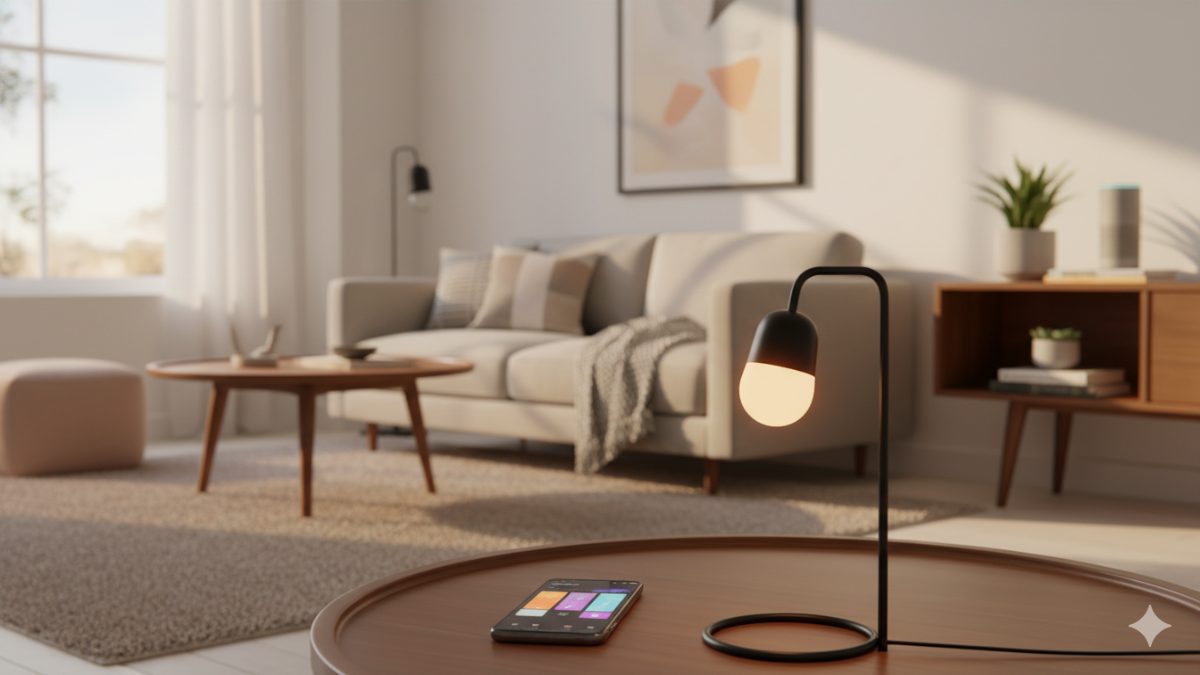
    Smart bulb — A light bulb with built-in Wi-Fi or Zigbee that you control from an app or voice. See our best smart bulbs guide.

    Smart switch — Replaces the wall switch itself. Better than smart bulbs if multiple bulbs are on one circuit. Works with regular bulbs.

    Smart plug — Plugs into a wall outlet; you plug a regular device into it. Makes any plug-in appliance app-controllable.

    Smart lock — Replaces or augments your existing deadbolt. Lets you unlock from your phone, give one-time codes to guests, or unlock when your phone arrives home.

    Smart thermostat — Replaces your existing wall thermostat. Learns your schedule, controllable from your phone, often saves $50–$200/year on heating/cooling.

    Smart doorbell — A camera doorbell. Lets you see/talk to whoever’s at the door from your phone.

    Networking concepts

    Mesh network — A network where every device helps relay signal to other devices. Improves reliability and range. Mesh is used by Zigbee, Z-Wave, Thread, and most modern Wi-Fi mesh systems (eero, Orbi, Google Wifi).

    Local control — A device that works without internet (still responds to voice/phone on the same Wi-Fi). Better for privacy and reliability. Most Hue, HomeKit, and Matter devices have this.

    Cloud control — A device that requires sending commands through the manufacturer’s servers, even from inside your home. Slower, breaks during outages.

    2.4 GHz / 5 GHz — Two Wi-Fi bands. 2.4 GHz has longer range and goes through walls better but is slower. Most smart home devices ONLY use 2.4 GHz.

    IoT (Internet of Things) — The umbrella term for all internet-connected devices in your home. “Smart home” is a subset of IoT.

    Features and concepts

    Geofencing — A virtual boundary around your home. Triggers automations when your phone arrives or leaves (e.g., turn off thermostat when leaving).

    Routine / Scene / Automation — A series of actions triggered by one command, time, or event. See our Alexa Routines guide.

    Voice control — Controlling devices by speaking to a smart speaker.

    Skill / Action — A third-party integration in Alexa (Skill) or Google Assistant (Action). E.g., the “Wyze Skill” lets Alexa control Wyze cameras.

    Multi-admin — A Matter feature where one device can be controlled by multiple platforms (Apple + Google + Alexa) simultaneously.

    Schedule — A time-based automation (e.g., porch light at sunset).

    Trigger — The event that starts an automation (voice, time, motion, etc.).

    Action — What the automation does once triggered.

    Group — A bundle of devices controlled together. “Living room lights” might be a group of 3 bulbs.

    Scene — A specific configuration of devices. “Movie night” might be lights at 20%, TV on, thermostat at 68°.

    Security and privacy

    End-to-end encryption — Data is encrypted between your device and the smart home platform; the cloud provider can’t read it. HomeKit uses this. Some Ring/Nest features do too.

    Two-factor authentication (2FA) — A second login step (a code from your phone) to protect your smart home account. Always enable this.

    Local processing / On-device AI — Features that run on the device itself, not in the cloud. Better for privacy. Apple Home and newer Eufy cameras do this.

    Cloud storage — Recordings or data stored on the manufacturer’s servers. Convenient but raises privacy questions.

    Firmware — Software running on the device. Update it regularly for security fixes.

    Energy and electrical

    Phantom power / Vampire load — Electricity drawn by devices that are “off.” See our smart plug energy savings guide.

    kWh (kilowatt-hour) — The unit your electric bill uses. 1,000 watts running for 1 hour. US average price: ~$0.15/kWh.

    C-wire — A wire in some thermostat installs that provides constant 24V power. Required by most smart thermostats.

    Line voltage / High voltage — 120V/240V electrical. Used by electric baseboard heaters; requires special smart thermostats.

    PoE (Power over Ethernet) — A single Ethernet cable that carries both data and power. Used by some security cameras for one-cable installs.

    Common abbreviations

    HK — HomeKit
    SS — SmartThings
    HA — Home Assistant (the open-source platform)
    FOSS — Free and open-source software
    RTSP — A video streaming protocol used by some cameras
    NVR — Network Video Recorder; a device for storing camera recordings
    API — Application Programming Interface; how developers integrate with smart home platforms

    Bottom line

    Bookmark this page. The smart home industry will keep inventing new buzzwords, but most of them are just packaging for the concepts above. If you understand Matter, Thread, hubs, and the difference between local and cloud control, you can decode any smart home product page in a minute.

    For deeper dives, start with What Is a Smart Home? if you’re brand new, or Matter vs HomeKit vs Google Home if you’re picking a platform.

    — Written by The Grid editorial team.

  • The Cheapest Way to Build a Smart Home for Under $200

    The Cheapest Way to Build a Smart Home for Under $200

    You don’t need a thousand-dollar setup to have a useful smart home. Here’s a complete starter kit covering lighting, voice control, security, and automation — all under $200, all available on Amazon.

    The shopping list ($188 total)

    What Why Price
    Amazon Echo Pop Voice assistant + smart home hub $25
    Wyze Bulb Color (4-pack) Color smart bulbs for 4 rooms $35
    Kasa Smart Plug (4-pack) Make any lamp/coffee maker smart $25
    Wyze Video Doorbell Pro See and talk to who’s at the door $60
    Wyze Cam Pan v3 One indoor camera for living room $30
    Aqara Motion Sensor P2 Auto-trigger lights when you walk in $13
    Total $188

    Why these specific picks

    Echo Pop — the brain ($25)

    Smaller and cheaper than the Echo Dot, but does everything you need: voice control, Alexa Routines, basic music playback, and works as a Matter hub. Buy a second one for the bedroom later if you like it.

    Why not Google Nest Mini? Same price tier, but Alexa has the widest device support for cheap brands like Wyze and Kasa. If you have an Android phone you’d otherwise prefer Google, the Echo Pop still works fine.

    Wyze Bulb Color 4-pack — the lights ($35)

    Four color-changing smart bulbs for under $9 each. Put them in: kitchen, living room, bedroom, hallway. Set schedules for sunrise/sunset, dim them at night, change colors for movie nights.

    Setup is 5 minutes per bulb via the Wyze app. They work with Alexa from day one.

    Kasa Smart Plugs 4-pack — the universal smart-makers ($25)

    Smart plugs turn dumb things smart. Put one on a coffee maker (auto-on at 6:30 AM), a fan (voice control), the Christmas tree (schedule), or a space heater (turn off at bedtime).

    Per-plug cost: $6.25. Best dollar-per-utility purchase in this kit.

    Wyze Video Doorbell Pro — the front door ($60)

    1296p video, 2-way talk, motion alerts to your phone. Hardwired (replaces existing doorbell wiring). 14-day cloud storage on the free tier. Yes, you should know about this if you don’t have one.

    Wireless option: Wyze Doorbell v2 for $40 if you don’t have existing doorbell wires.

    Wyze Cam Pan v3 — the indoor eyes ($30)

    360° pan/tilt, 1080p, indoor only. Best uses: pet monitor, baby monitor, “is the dog walker actually showing up” check. Free 14-day cloud storage means no subscription needed.

    Aqara Motion Sensor — the automator ($13)

    Sticks to a wall with adhesive (no wiring). Detects motion and triggers Alexa Routines. Best uses: hallway light at night, garage light when entering, kitchen light when you walk in.

    Requires an Aqara Hub OR a Matter-over-Thread setup. The cheapest path: buy this with the Aqara Hub E1 ($25) bundle if your kit grows. For just the basic setup, replace this with a smart bulb scheduled by time of day.

    What you DON’T need on day one

    • Smart thermostat ($80–$280) — biggest single energy saver, but adds complexity. Add when you’ve lived with the basics for a month.
    • Smart lock ($150–$300) — useful but not essential. Wait until you understand how everything else integrates.
    • Whole-home security system — premium tier, comes later.
    • Smart blinds, smart switches, smart sprinklers — niche-by-niche additions, not starter kit.

    Setup order (one weekend)

    1. Saturday morning: Set up Echo Pop. Sign in with your Amazon account. Test “Alexa, what’s the weather?”
    2. Saturday afternoon: Install all 4 Wyze bulbs in lamps. Set up Wyze app, link to Alexa via Wyze Skill.
    3. Saturday evening: Set up smart plugs. Pick one as your “learning” plug — put it on a lamp and play with voice control.
    4. Sunday morning: Install doorbell (turn off breaker first if hardwiring). Test from the front door.
    5. Sunday afternoon: Set up indoor camera. Aim it at whatever you actually want to watch.
    6. Sunday evening: Build your first Routine. “Alexa, good night” → all lights off, plugs off, doorbell on full alert.

    For step-by-step on the plug part, see our smart plug setup guide.

    Three things we’d buy NEXT (after the first month)

    1. Amazon Smart Thermostat ($80) — biggest energy savings of any smart device.
    2. One more Echo Pop ($25) for the bedroom — voice control by your bed is genuinely life-changing.
    3. Govee LED strip ($30) for behind your TV — the “wow” effect when guests visit.

    FAQ

    Do I need fast Wi-Fi?

    Standard home internet (50+ Mbps) is plenty. The total bandwidth use of this whole kit is less than streaming one Netflix episode.

    What if I rent?

    Everything in this list is renter-safe except the doorbell (which replaces an existing doorbell). Skip the doorbell or use a wireless model with adhesive mounting.

    Can I add HomeKit later?

    Most of these (Wyze bulbs and cameras, Wyze doorbell) don’t support HomeKit. The smart plugs and Aqara sensor do via Matter. Plan accordingly if you’re committed to Apple Home.

    Will this work with an Android phone?

    Yes — Alexa, Wyze, Kasa, and Aqara all have Android apps.

    What’s the weakest link in this kit?

    The Echo Pop has only one speaker, so music sounds thin. Fine for voice/timers, not great for music. Easy upgrade later: Echo Dot 5th gen ($50) or Echo Studio ($200) if you actually care about music quality.

    Bottom line

    Six purchases, $188, a real working smart home in one weekend. From here you can grow in any direction — security, energy, media — with each new device costing less than $50 to add.

    If you want to go even cheaper: skip the cameras and doorbell, and you’re at $98 for a fully functional voice-and-light setup. That’s the minimum-viable smart home.

    — Written by The Grid editorial team. Prices verified at the time of writing.

  • How to Make a Dumb TV Smart (5 Cheap Ways)

    How to Make a Dumb TV Smart (5 Cheap Ways)

    You don’t need a new TV. You need a $30 stick.

    If your current TV has at least one HDMI port (made after about 2008, basically all of them), it can stream Netflix, Disney+, YouTube, and everything else within 10 minutes. Here are the five ways to do it, ranked from cheapest to most premium, with honest takes on which is actually worth it.

    Quick comparison

    Option Price Best for
    Roku Express 4K+ $25–$40 Most people; simple, fast, no ecosystem lock-in
    Amazon Fire TV Stick 4K Plus $25–$50 Heavy Amazon Prime users
    Google Chromecast with Google TV $30–$50 Android phone owners, Google household
    Apple TV 4K $130–$150 iPhone households, premium quality, gaming
    Smart projector or smart Blu-ray $100+ Niche cases — see below

    1. Roku Express 4K+ (~$25–$40) — Best for most people

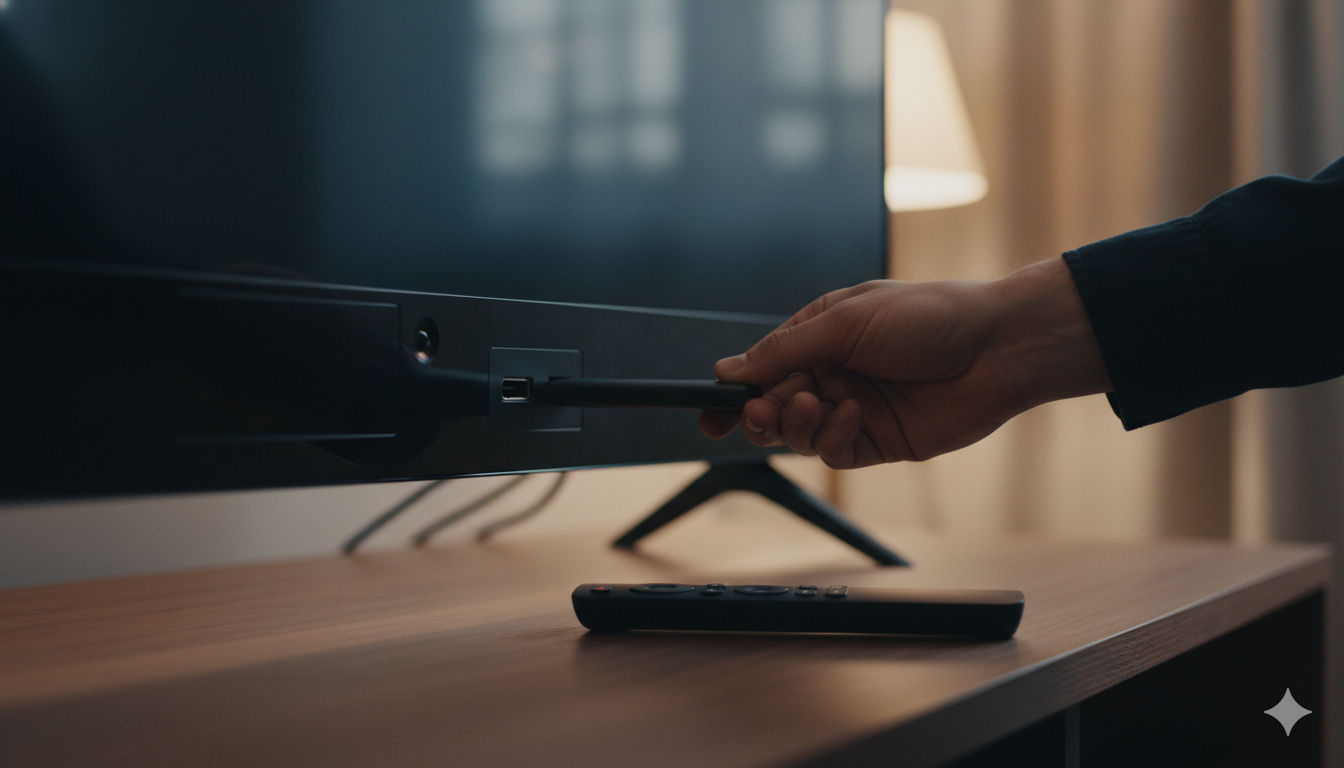
    Roku has the cleanest interface of any streaming platform. No constant ads to upgrade to Prime. Every major streaming app is supported. Setup takes 5 minutes: plug into HDMI, connect to Wi-Fi, sign in to Roku and your streaming services, done.

    Pros: Cheapest reliable option, simple interface, good remote with voice search.
    Cons: Roku slips in some banner ads on the home screen. Lower-end models can feel sluggish.
    Verdict: This is the default recommendation. Buy it on sale (often $25 during Prime Day or Black Friday).

    Check Roku Express 4K+ on Amazon →

    2. Amazon Fire TV Stick 4K (~$25–$50) — Best for Prime users

    Tightly integrated with Prime Video and Alexa. The Alexa voice remote is genuinely useful — you can say “Alexa, play episode 3” and it usually works. Performance is snappier than Roku at the same price.

    Pros: Alexa built in, fast, often heavily discounted.
    Cons: Heavy Amazon promotion across the home screen — especially around Prime Day. Other apps sometimes feel like second-class citizens.
    Verdict: Buy it if you already use Prime Video heavily and don’t mind Amazon nudging you to buy things.

    Check Fire TV Stick 4K Plus on Amazon →

    Want maximum power? Try the Fire TV Stick 4K Max (16GB storage, Wi-Fi 6E).

    3. Google Chromecast with Google TV (~$30–$50) — Best for Android households

    You get a full streaming OS (Google TV) plus the original Chromecast trick of “casting” content from your phone. Useful if everyone in your house has an Android phone and you want to flip a YouTube video onto the TV in two taps.

    Pros: Phone-to-TV casting is genuinely seamless from Android. Personalized recommendations across services.
    Cons: The remote is small and easy to lose. Recommendations can feel pushy.
    Verdict: Best if your phones are Android. Otherwise the Roku is simpler.

    Check Google Chromecast with Google TV on Amazon →

    4. Apple TV 4K (~$130–$150) — Best for iPhone homes (and quality nerds)

    The most expensive option by far, and the only one most people would call “premium.” Picture quality is noticeably better (smoother frame interpolation, better HDR handling), the remote is a delight, AirPlay from your iPhone “just works,” and it doubles as a HomeKit hub if you’re building an Apple-centric smart home.

    Pros: Best video quality, no ads in the OS, excellent remote, doubles as a smart home hub, runs Apple Arcade games.
    Cons: Costs 4–6x more than the alternatives. Overkill for most TVs.
    Verdict: Worth it if (a) you have an iPhone household, (b) you care about picture quality, or (c) you want a HomeKit hub anyway.

    See current Apple TV 4K prices on Amazon →

    5. Smart Blu-ray player or projector (specific cases only)

    A handful of newer Blu-ray players and projectors come with Roku, Google TV, or Android TV built in. Useful if you were going to buy that hardware anyway. Not a reason on its own to make a purchase decision.

    What to consider before you buy

    Wi-Fi and Ethernet

    Streaming sticks need a strong Wi-Fi signal at the TV’s location. If the TV is far from your router, expect occasional buffering — especially in 4K. The Apple TV and older Chromecast Ultra support wired Ethernet for rock-solid streams. The cheap sticks usually don’t.

    HDMI version

    Almost all TVs from the last 15 years have HDMI. For 4K HDR content, the TV itself needs to support 4K. If your TV is 1080p, save money — buy a Roku Express (non-4K, $20) instead of the 4K version.

    What about smart TVs themselves?

    If you’re shopping for a new TV anyway, you’ll get a smart OS built in (Roku TV, Google TV, Fire TV, webOS for LG, Tizen for Samsung). They all work fine. But if your current TV is otherwise good, do NOT replace it just to “go smart.” A $30 stick gets you 90% of what a new smart TV gives you, for 1% of the cost.

    FAQ

    Do I need a subscription to use a streaming stick?

    The stick itself costs once. Streaming services (Netflix, Disney+, etc.) each cost a monthly fee. You can use free services like Pluto TV, Tubi, and most YouTube content with no subscription.

    Can I use a streaming stick on a TV without HDMI?

    Not directly. Older TVs with only RCA/composite inputs would need an HDMI-to-composite converter (~$20). At that point, a cheap new 32″ TV ($120) probably makes more sense.

    Will a streaming stick work without home Wi-Fi?

    No. Streaming sticks rely on internet. If you’re traveling, some support phone-tethering hotspots, but expect data charges to add up fast at HD/4K resolutions.

    Which streaming stick has the best remote?

    Subjective, but: Apple TV’s Siri Remote (2nd gen) > Roku Voice Remote Pro > Fire TV Alexa Voice Remote > Chromecast remote.

    Do I need an antenna AND a streaming stick?

    Only if you want over-the-air local channels (network TV, news). Antennas are still legit and free — get one if you watch live local programming.

    Bottom line

    Most people: Roku Express 4K+ at $25–$40.
    Heavy Amazon users: Fire TV Stick 4K Plus at $25–$50.
    iPhone households or quality lovers: Apple TV 4K at $130–$150.

    You can have your “dumb” TV streaming Netflix in 10 minutes for less than the cost of dinner.

    — Written by The Grid editorial team. Prices verified at the time of writing and may have changed since.

  • What Is a Smart Home? A Plain-English 2026 Guide

    What Is a Smart Home? A Plain-English 2026 Guide

    A smart home is not a single product. It’s a collection of everyday things — lights, thermostats, locks, cameras, plugs — that connect to your Wi-Fi and let you control them from your phone, your voice, or a schedule you set once and forget about.

    If that sounds either too simple or too overwhelming, this guide is for you. By the end, you’ll know what counts as smart home tech, what it costs to start, what it actually does for you day to day, and how to set up your first device without wrecking your weekend.

    What “smart home” actually means

    The term is loose. Practically, a device qualifies as “smart” if it does at least one of these:

    • Connects to your home Wi-Fi (or a hub)
    • Can be controlled from a phone app
    • Responds to a voice assistant (Alexa, Google Assistant, Siri)
    • Can be automated based on time, location, or another device’s state

    A regular light bulb is not smart. A bulb you can turn off from your bed, dim from your phone, or schedule to fade on at sunset — that’s smart.

    The five categories you’ll see everywhere

    Most smart home gear falls into one of these buckets. Pick whichever solves a problem you already have.

    Category What it does Typical starter price
    Lighting Bulbs, switches, LED strips you control remotely $10 – $50 per bulb
    Climate Thermostats, smart fans, vents that adjust automatically $80 – $250
    Security Cameras, doorbells, smart locks, motion sensors $30 – $200 per device
    Energy Smart plugs and energy monitors that track and cut usage $10 – $40 per plug
    Voice & control Speakers, displays, hubs, remotes $30 – $150

    The trick is to start with one category and one room. Trying to “go smart everywhere” on day one is how people end up with a junk drawer full of returned devices.

    What runs the show: hubs, voice assistants, and Matter

    This is where new buyers get the most confused, so here’s the short version:

    • A voice assistant (Alexa, Google Assistant, or Siri/HomeKit) lets you control devices by talking. It lives in a speaker (Echo Pop, Nest Mini, HomePod mini) or your phone.
    • A hub is a small box that translates between your devices and your network. Some smart devices need one; many newer ones don’t.
    • Matter is a new universal standard (launched 2023, mature in 2026) that lets devices from different brands work together without you having to pick a single ecosystem.

    If you’re starting today, the simplest path is: pick one voice assistant based on the phone you have (iPhone → Siri/HomeKit, Android → Google Assistant, neither → Alexa is the safest), and only buy devices that work with it. If a device says “Works with Matter,” you have flexibility to switch later.

    What a basic smart home actually does for you

    Forget the futuristic ads. Here’s what most people actually use their smart home for, day to day:

    • Schedules and routines. Lights fade on in the kitchen at 6:30 a.m., porch light goes on at sunset, kid’s room dims at 8 p.m. Set once, never think about it again.
    • Voice control while your hands are full. “Alexa, turn off the kitchen” while carrying a dripping pan beats walking back to a switch.
    • Catching things from your phone. Was the garage door left open? Is the thermostat running while we’re on vacation?
    • Saving electricity. Smart plugs reveal which “off” devices are still drawing power. Smart thermostats learn your schedule and stop heating an empty house.
    • Making the front door safer. Smart doorbells let you see who’s there before opening.

    How much does it cost to start?

    You can have a useful smart home for under $100. Honest minimum starting kit:

    • One smart speaker (~$25 on sale) — try the Echo Pop
    • Two smart bulbs for the rooms you use most (~$20 each) — try Wyze Bulb Color
    • One smart plug for a lamp or coffee maker (~$10) — try Kasa Smart Plug

    That’s about $75. Add a video doorbell ($60) and a smart thermostat ($120) over the next few months and you’ve covered the four highest-impact areas.

    What can go wrong (and how to avoid it)

    • Wi-Fi flakiness. Most smart devices use 2.4 GHz Wi-Fi. If your router is old or weak, devices will randomly drop offline. A modern mesh router fixes this almost completely.
    • App fatigue. Each brand wants you to use its app. Centralize control through one voice assistant or use Matter-compatible devices to keep everything in one place.
    • Devices that get abandoned. Cheap no-name brands sometimes shut down their cloud servers and your devices become bricks. Stick to brands with a track record.

    FAQ

    Do smart home devices need a subscription?

    Most don’t. Smart bulbs, plugs, thermostats, and basic cameras work fully without one.

    Can I control smart devices when I’m away from home?

    Yes — as long as your home Wi-Fi is on, almost every modern device works remotely through its app.

    Are smart home devices safe from hackers?

    Reasonably so if you (a) buy from reputable brands, (b) use a strong, unique password on your Wi-Fi, and (c) keep device firmware updated.

    Do smart bulbs work with regular light switches?

    Mostly no. If the wall switch is off, a smart bulb has no power. The fix: leave the wall switch always on, and control the bulb only from your app/voice.

    What if I rent and can’t drill anything?

    Plenty of renter-friendly options — smart bulbs (just screw in), smart plugs (no wiring), battery cameras with adhesive mounts.

    Where to go next

    If you’ve never bought a smart device, start with a single smart bulb in the room where you flip a light switch most often. It’s cheap, it can’t break anything, and it takes 5 minutes to set up.

    — Written by The Grid editorial team.