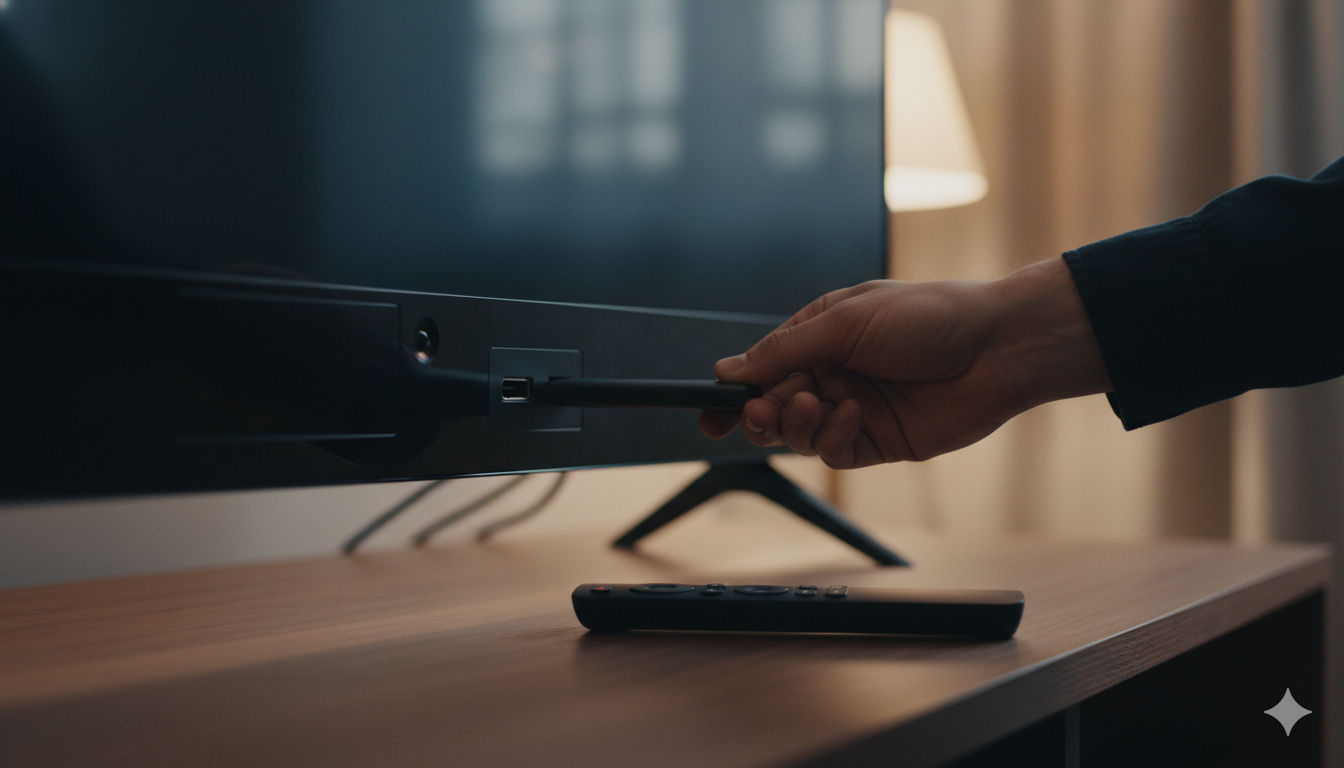
You don’t need a new TV. You need a $30 stick.
If your current TV has at least one HDMI port (made after about 2008, basically all of them), it can stream Netflix, Disney+, YouTube, and everything else within 10 minutes. Here are the five ways to do it, ranked from cheapest to most premium, with honest takes on which is actually worth it.
Quick comparison
| Option | Price | Best for |
|---|---|---|
| Roku Express 4K+ | $25–$40 | Most people; simple, fast, no ecosystem lock-in |
| Amazon Fire TV Stick 4K Plus | $25–$50 | Heavy Amazon Prime users |
| Google Chromecast with Google TV | $30–$50 | Android phone owners, Google household |
| Apple TV 4K | $130–$150 | iPhone households, premium quality, gaming |
| Smart projector or smart Blu-ray | $100+ | Niche cases — see below |
1. Roku Express 4K+ (~$25–$40) — Best for most people
Roku has the cleanest interface of any streaming platform. No constant ads to upgrade to Prime. Every major streaming app is supported. Setup takes 5 minutes: plug into HDMI, connect to Wi-Fi, sign in to Roku and your streaming services, done.
Pros: Cheapest reliable option, simple interface, good remote with voice search.
Cons: Roku slips in some banner ads on the home screen. Lower-end models can feel sluggish.
Verdict: This is the default recommendation. Buy it on sale (often $25 during Prime Day or Black Friday).
Check Roku Express 4K+ on Amazon →
2. Amazon Fire TV Stick 4K (~$25–$50) — Best for Prime users
Tightly integrated with Prime Video and Alexa. The Alexa voice remote is genuinely useful — you can say “Alexa, play episode 3” and it usually works. Performance is snappier than Roku at the same price.
Pros: Alexa built in, fast, often heavily discounted.
Cons: Heavy Amazon promotion across the home screen — especially around Prime Day. Other apps sometimes feel like second-class citizens.
Verdict: Buy it if you already use Prime Video heavily and don’t mind Amazon nudging you to buy things.
Check Fire TV Stick 4K Plus on Amazon →
Want maximum power? Try the Fire TV Stick 4K Max (16GB storage, Wi-Fi 6E).
3. Google Chromecast with Google TV (~$30–$50) — Best for Android households
You get a full streaming OS (Google TV) plus the original Chromecast trick of “casting” content from your phone. Useful if everyone in your house has an Android phone and you want to flip a YouTube video onto the TV in two taps.
Pros: Phone-to-TV casting is genuinely seamless from Android. Personalized recommendations across services.
Cons: The remote is small and easy to lose. Recommendations can feel pushy.
Verdict: Best if your phones are Android. Otherwise the Roku is simpler.
Check Google Chromecast with Google TV on Amazon →
4. Apple TV 4K (~$130–$150) — Best for iPhone homes (and quality nerds)
The most expensive option by far, and the only one most people would call “premium.” Picture quality is noticeably better (smoother frame interpolation, better HDR handling), the remote is a delight, AirPlay from your iPhone “just works,” and it doubles as a HomeKit hub if you’re building an Apple-centric smart home.
Pros: Best video quality, no ads in the OS, excellent remote, doubles as a smart home hub, runs Apple Arcade games.
Cons: Costs 4–6x more than the alternatives. Overkill for most TVs.
Verdict: Worth it if (a) you have an iPhone household, (b) you care about picture quality, or (c) you want a HomeKit hub anyway.
See current Apple TV 4K prices on Amazon →
5. Smart Blu-ray player or projector (specific cases only)
A handful of newer Blu-ray players and projectors come with Roku, Google TV, or Android TV built in. Useful if you were going to buy that hardware anyway. Not a reason on its own to make a purchase decision.
What to consider before you buy
Wi-Fi and Ethernet
Streaming sticks need a strong Wi-Fi signal at the TV’s location. If the TV is far from your router, expect occasional buffering — especially in 4K. The Apple TV and older Chromecast Ultra support wired Ethernet for rock-solid streams. The cheap sticks usually don’t.
HDMI version
Almost all TVs from the last 15 years have HDMI. For 4K HDR content, the TV itself needs to support 4K. If your TV is 1080p, save money — buy a Roku Express (non-4K, $20) instead of the 4K version.
What about smart TVs themselves?
If you’re shopping for a new TV anyway, you’ll get a smart OS built in (Roku TV, Google TV, Fire TV, webOS for LG, Tizen for Samsung). They all work fine. But if your current TV is otherwise good, do NOT replace it just to “go smart.” A $30 stick gets you 90% of what a new smart TV gives you, for 1% of the cost.
FAQ
Do I need a subscription to use a streaming stick?
The stick itself costs once. Streaming services (Netflix, Disney+, etc.) each cost a monthly fee. You can use free services like Pluto TV, Tubi, and most YouTube content with no subscription.
Can I use a streaming stick on a TV without HDMI?
Not directly. Older TVs with only RCA/composite inputs would need an HDMI-to-composite converter (~$20). At that point, a cheap new 32″ TV ($120) probably makes more sense.
Will a streaming stick work without home Wi-Fi?
No. Streaming sticks rely on internet. If you’re traveling, some support phone-tethering hotspots, but expect data charges to add up fast at HD/4K resolutions.
Which streaming stick has the best remote?
Subjective, but: Apple TV’s Siri Remote (2nd gen) > Roku Voice Remote Pro > Fire TV Alexa Voice Remote > Chromecast remote.
Do I need an antenna AND a streaming stick?
Only if you want over-the-air local channels (network TV, news). Antennas are still legit and free — get one if you watch live local programming.
Bottom line
Most people: Roku Express 4K+ at $25–$40.
Heavy Amazon users: Fire TV Stick 4K Plus at $25–$50.
iPhone households or quality lovers: Apple TV 4K at $130–$150.
You can have your “dumb” TV streaming Netflix in 10 minutes for less than the cost of dinner.
— Written by The Grid editorial team. Prices verified at the time of writing and may have changed since.
Keep reading